








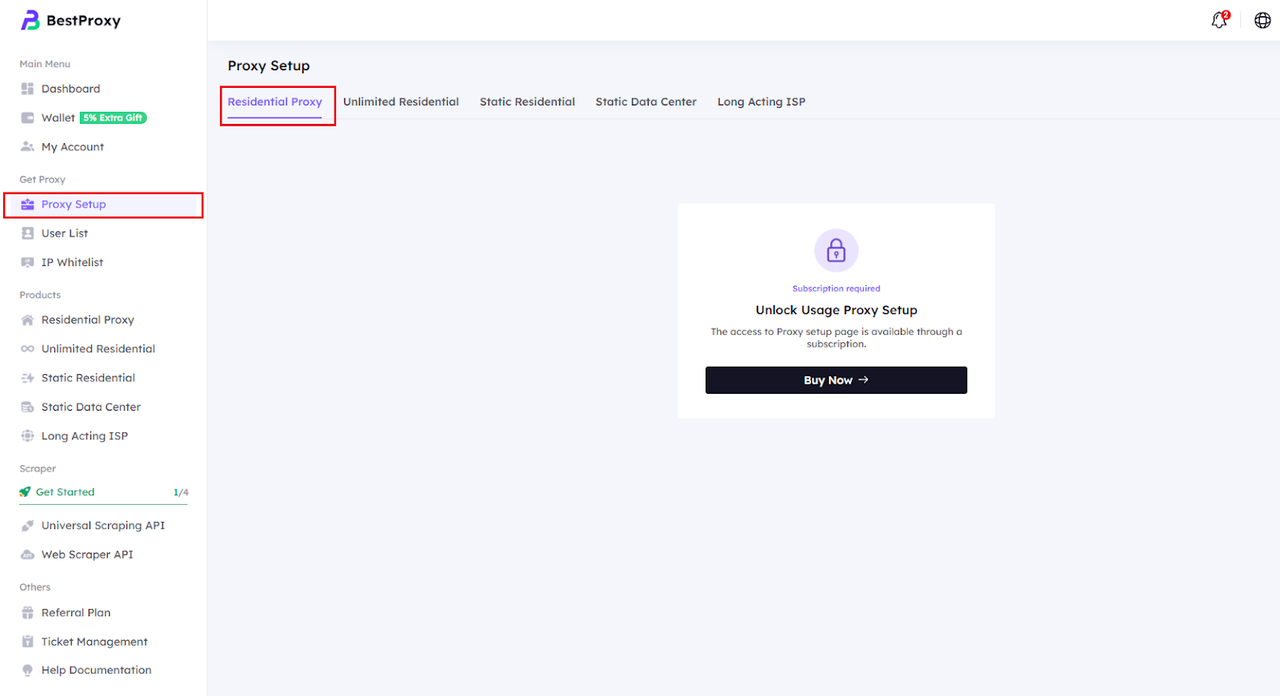
3. Create a sub-user for authentication:
- Click "Add User".
- Enter your username and password.
- Select the proxy type (Residential Proxy).
- Set the traffic limit (0 is recommended for unlimited).
- Submit and save.
4. Return to the residential agent page and select Account Password Authentication.。
5. Specify the target country/state/city (e.g., USA - New York) and IP rotation period (e.g., 5-10 minutes).。
6. Click Generate Proxy。
7. The system displays agent details.:
- Host: For example, proxy.bestproxy.com
- Port: For example, 8080
- Username: Your sub-username
- Password: Your sub-user password
8. Complete format example: username:[email protected]:8080 Note: If you need a fixed IP, select Static Residential Proxies; rotating proxies are suitable for dynamic anti-detection scenarios. Copy this information for future reference.
Step 2: Create or edit the agent in MostLogin
1. Open the MostLogin website, register, download the client, and log in.
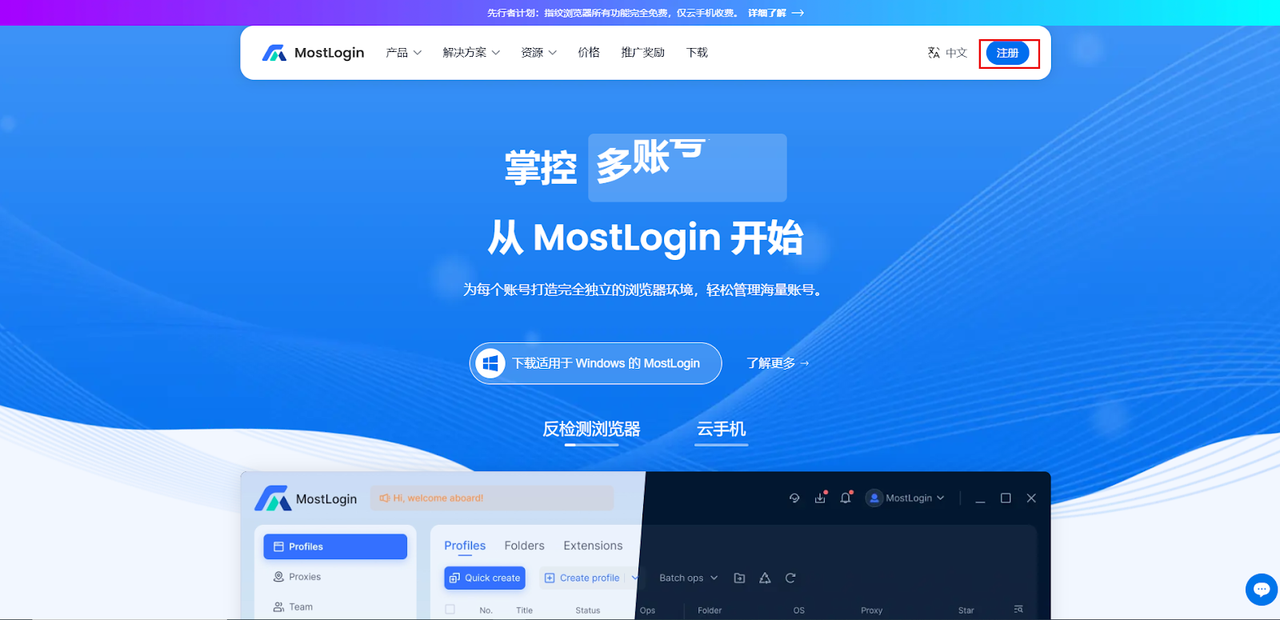
2. Click "Proxies" in the left navigation bar to enter the proxy management page.
3. Click the "+ Add proxy" button in the upper right corner to open the add proxy window.
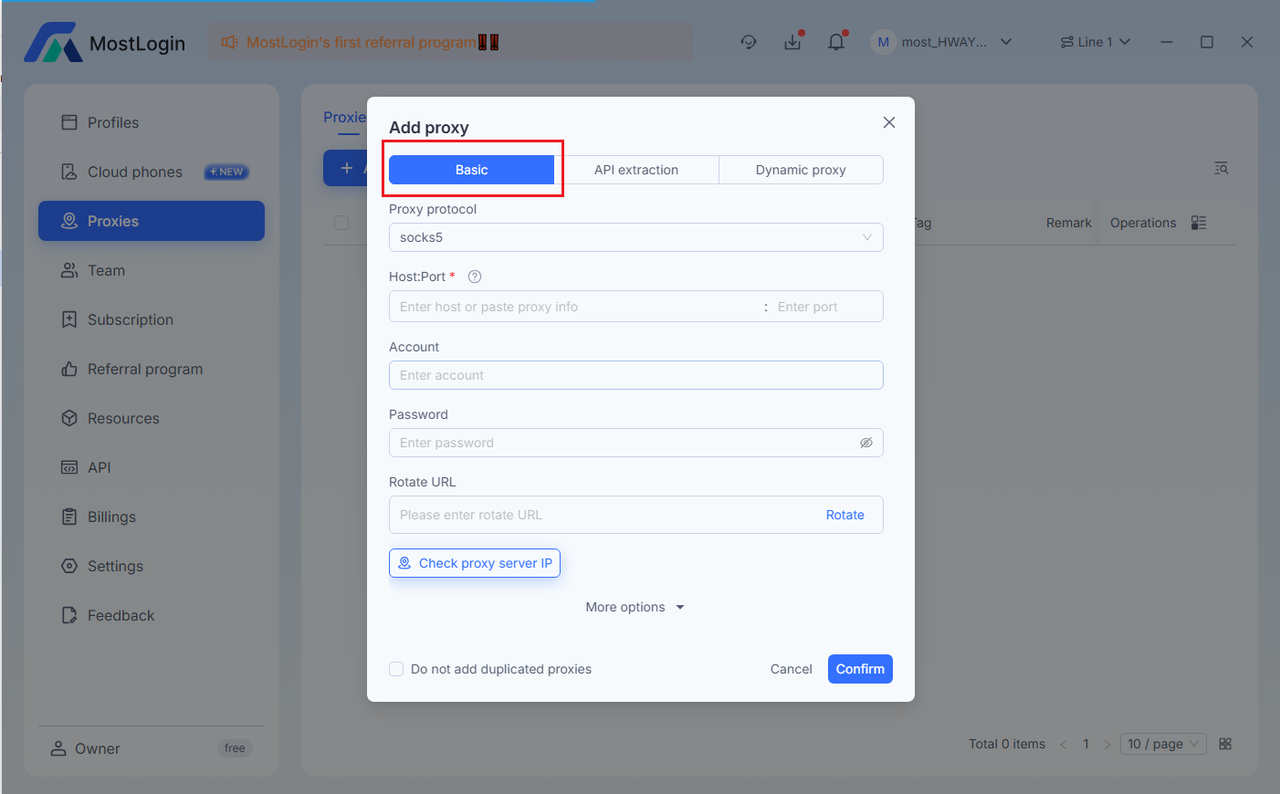
4. Select the Basic Tab (basic addition, manual input method).
5. Fill in the agent information:
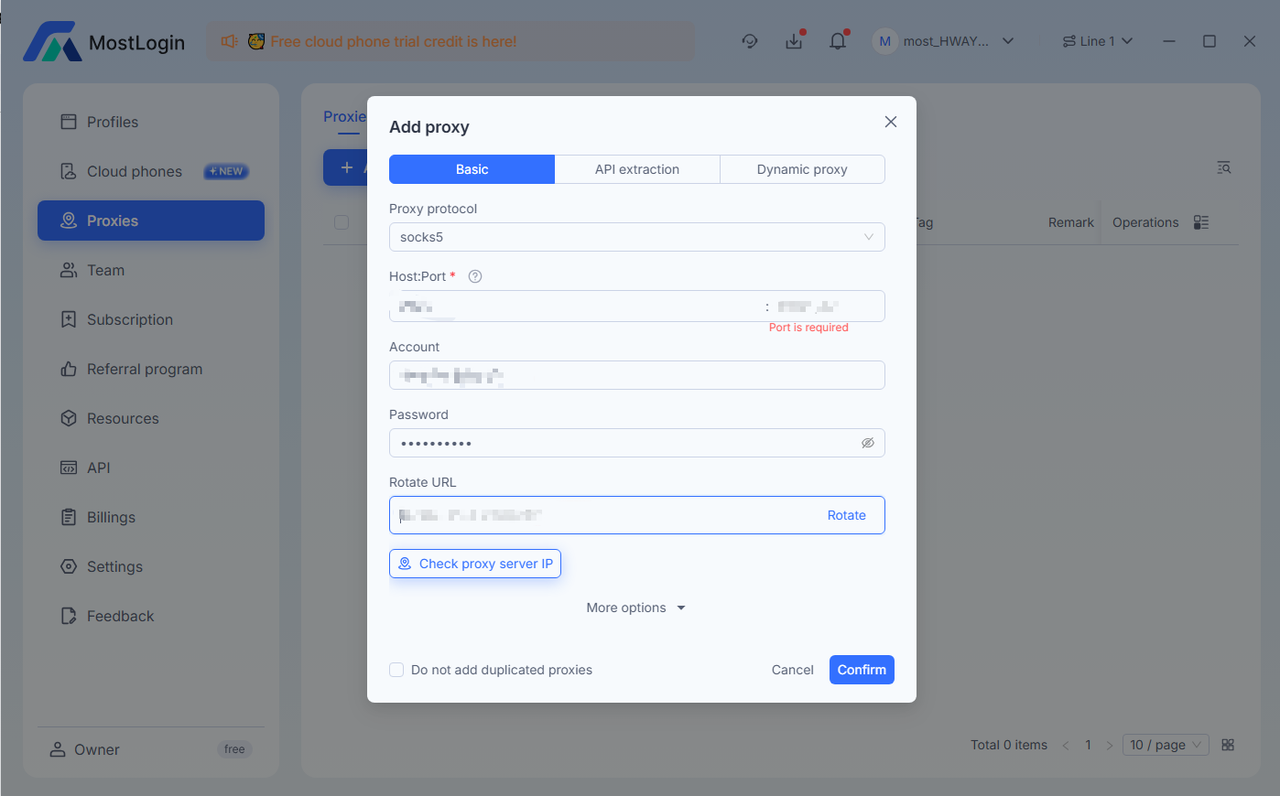
- Proxy protocol: Select HTTP or SOCKS5 (BestProxy supports both, SOCKS5 is recommended for better compatibility; HTTP can also be tried).
- Host:Port: Enter the BestProxy's host and port, for example, proxy.bestproxy.com:8080.
- Account: Enter the BestProxy sub-user's username.
- Password: Enter the BestProxy sub-user's password.
- Rotate URL (Optional): If BestProxy provides an API URL for manually rotating IPs, enter it here (for immediate testing of IP changes); otherwise leave it blank.
- Access: Select "Me" (visible only to yourself) or other team permissions.
- Tag: Add a tag, such as "BestProxy-USA" or "FB-Rotating".
- Remark: Add a note, such as "Rotating Residential Proxy - TikTok Dedicated".
6. Click the "Check proxy server IP" button to verify that the proxy is working properly. If successful, the outbound IP address will be displayed (this should be your residential IP address, not your local IP address).
7. Click "Confirm" to save the proxy settings.
Step 3: Apply the proxy to the browser configuration file
1. Go to the Profiles page.
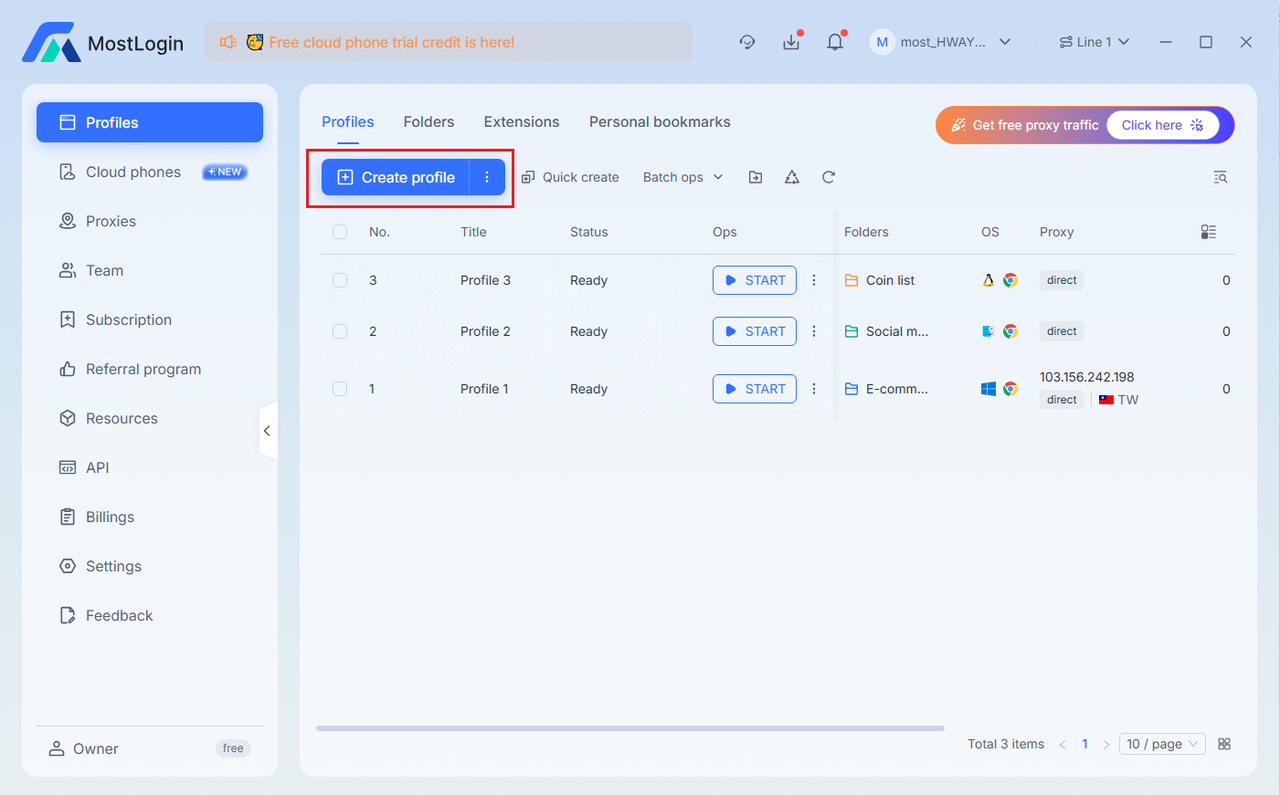
2. Click Create Profile or select an existing profile and click Edit.
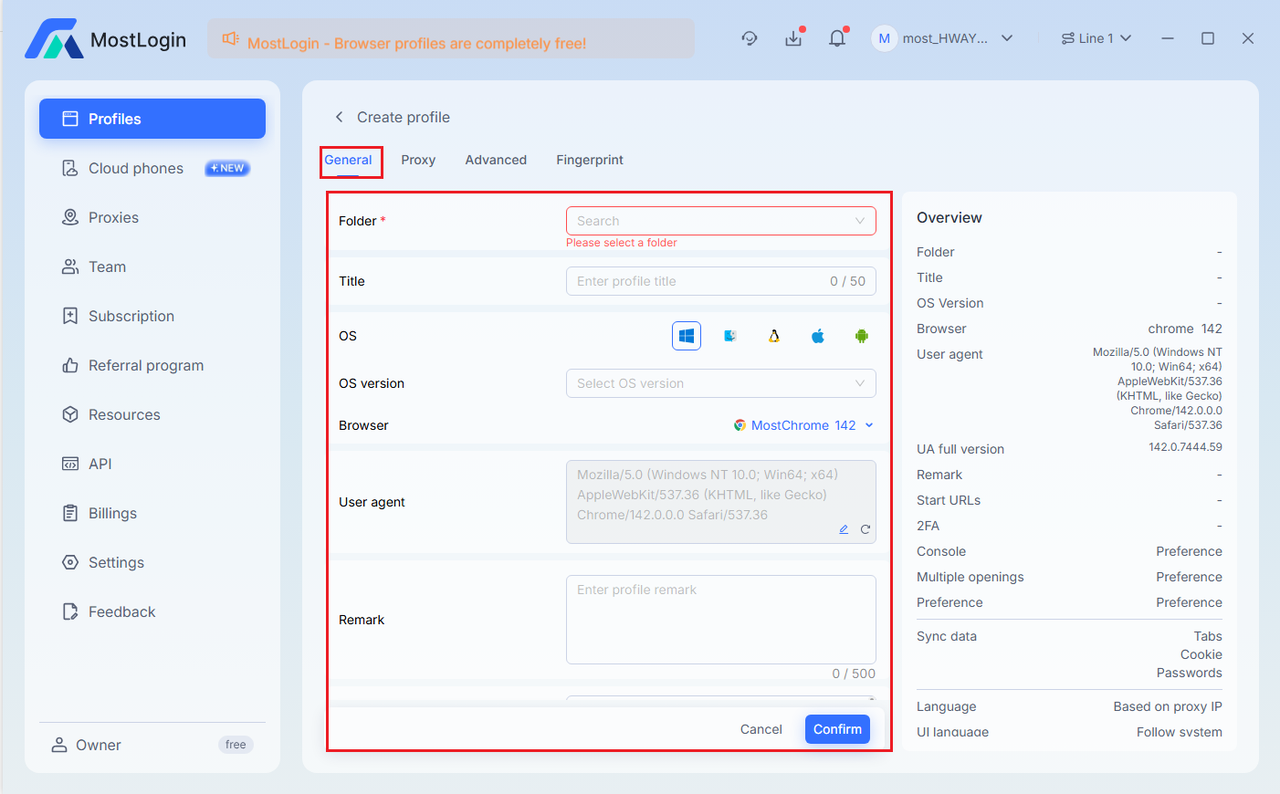
3. Locate the Network / Proxy section in the configuration file settings.
4. Select the BestProxy proxy you just added from the proxy list.
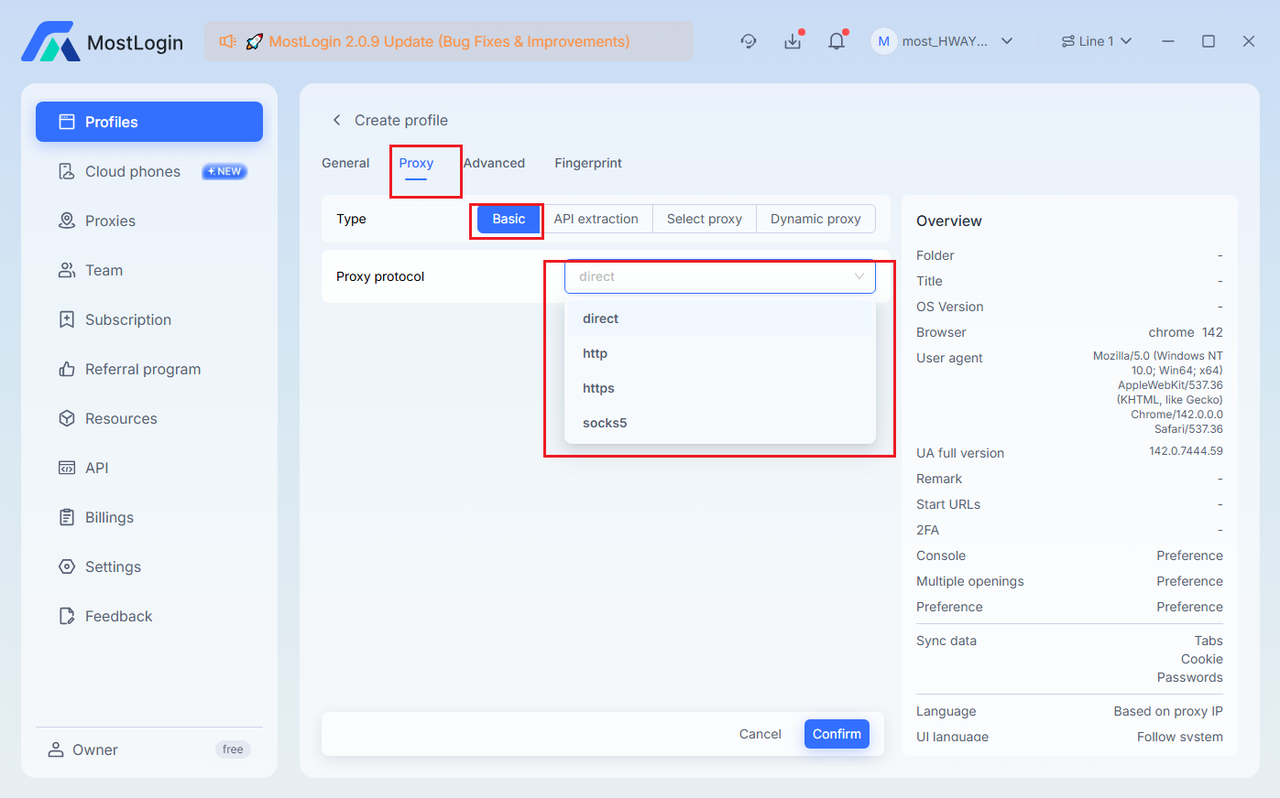
5. Save the configuration file.
6. Click "Open" to launch the configuration file.
7. Access an IP check website in your browser to confirm that the IP address has been switched to BestProxy's residential IP address.
8. Test the target platform (e.g., log in to your account) and observe whether it functions normally and without any abnormal detections.
Use API Extraction (automatically fetch new IPs)
If BestProxy provides an API extraction link (obtained from the API documentation or support in the dashboard, typically returning IP:Port information):
1. In the + Add proxy window, select the API extraction tab.
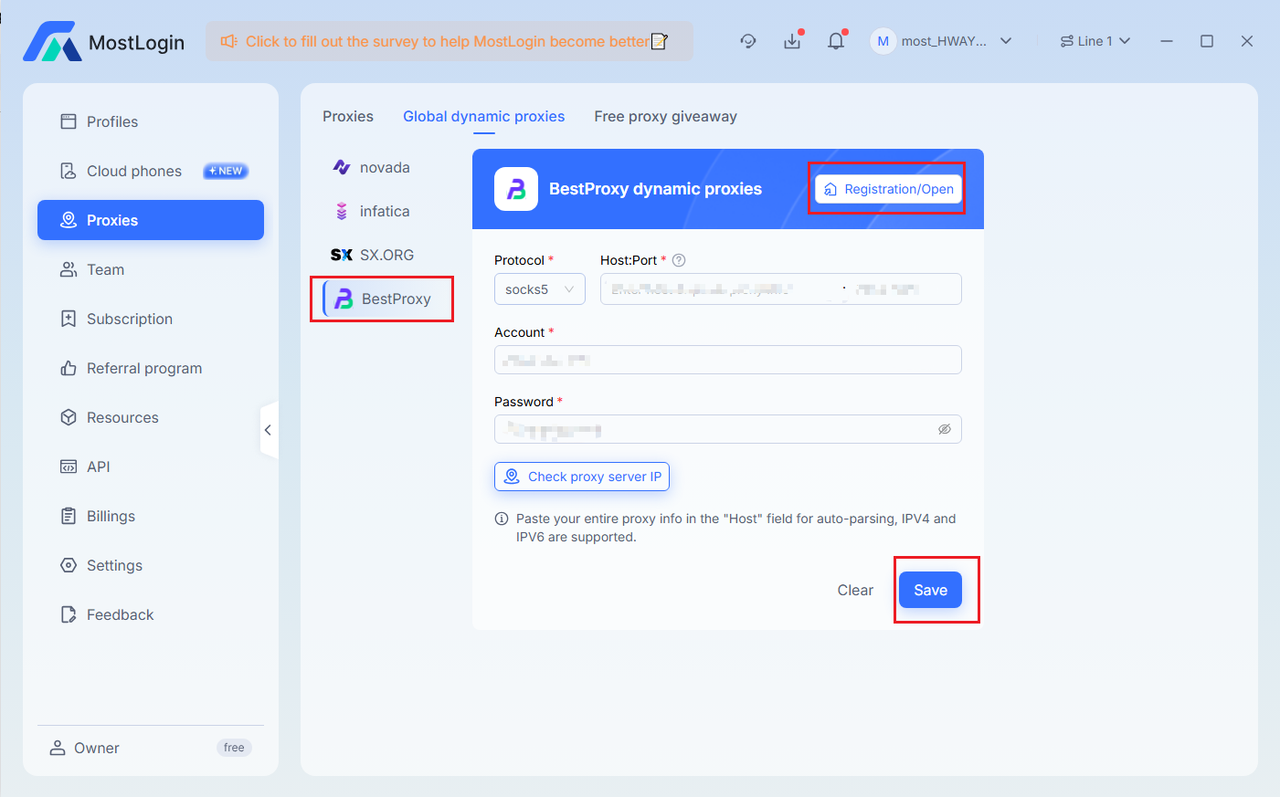
2. Proxy protocol: Select HTTP or SOCKS5.
3. Extraction link: Enter the BestProxy API link (e.g., http://api.bestproxy.com/get?key=xxx&country=US).
4. Click Extract to test; a successful extraction will display the new IP.
5. Fill in the Tag, Access, etc., and click Confirm to save.
6. MostLogin will automatically pull the new proxy from the API based on the settings, enabling more flexible rotation.
Common Problem Troubleshooting
- Proxy detection failed: Check if the username/password is correct (407/authentication errors are common); confirm protocol matching; retry the Check button.
- IP not rotating: Ensure you are using a Rotating Residential Proxy; static proxies will not automatically switch.
- Connection timeout: Check BestProxy traffic balance; try changing the country/city.
- Platform detection anomalies: Combine with MostLogin's fingerprint spoofing features such as WebRTC and Canvas; contact support if necessary.
- Support channels: BestProxy Support ([email protected]); MostLogin Help Center.
This tutorial is based on the latest MostLogin interface and BestProxy standard procedures. For service updates, please refer to the official documentation. Wishing you a smooth and successful journey!


